
Salesforce Order of Execution is the sequence Salesforce follows when saving, updating, deleting, or restoring a record. It determines when flows, triggers, validation rules, assignment rules, and asynchronous processes run.
Understanding this sequence helps developers avoid:
- Trigger recursion
- Unexpected Flow behavior
- Validation failures
- Automation conflicts
- Governor limit issues
This guide explains every execution step with practical examples.
Table of Content
- 1. Quick Salesforce Order of Execution Diagram
- 2. Salesforce Order of Execution Cheat Sheet
- 3. Detailed Steps in the Order of Execution
- 4. Why is the order of execution important?
- 5. Common Order of Execution Problems and Solutions
- 6. Order of Execution Example Scenarios
- 7. Order of Execution Best Practices
- 7.1. Avoid Duplicate Business Logic Across Automation Tools
- 7.2. Understand Before-Save and After-Save Automation Differences
- 7.3. Design Automation With Recursion Prevention in Mind
- 7.4. Keep One Automation Entry Point Per Object
- 7.5. Always Consider Transaction Boundaries
- 7.6. Avoid Updating the Same Field From Multiple Automations
- 7.7. Use Debug Logs to Understand Actual Execution
- 7.8. Consider Bulk Processing During Every Automation Design
- 7.9. Document Complex Automation Flows
- 7.10. Review Automation Architecture Regularly
- 7.1. Avoid Duplicate Business Logic Across Automation Tools
- 8. Salesforce Flow vs Apex Trigger Execution Order
- 9. Frequently Asked Questions
- 10. Salesforce Apex Learning Path
- 11. Summary
- References
- Recommended Reading
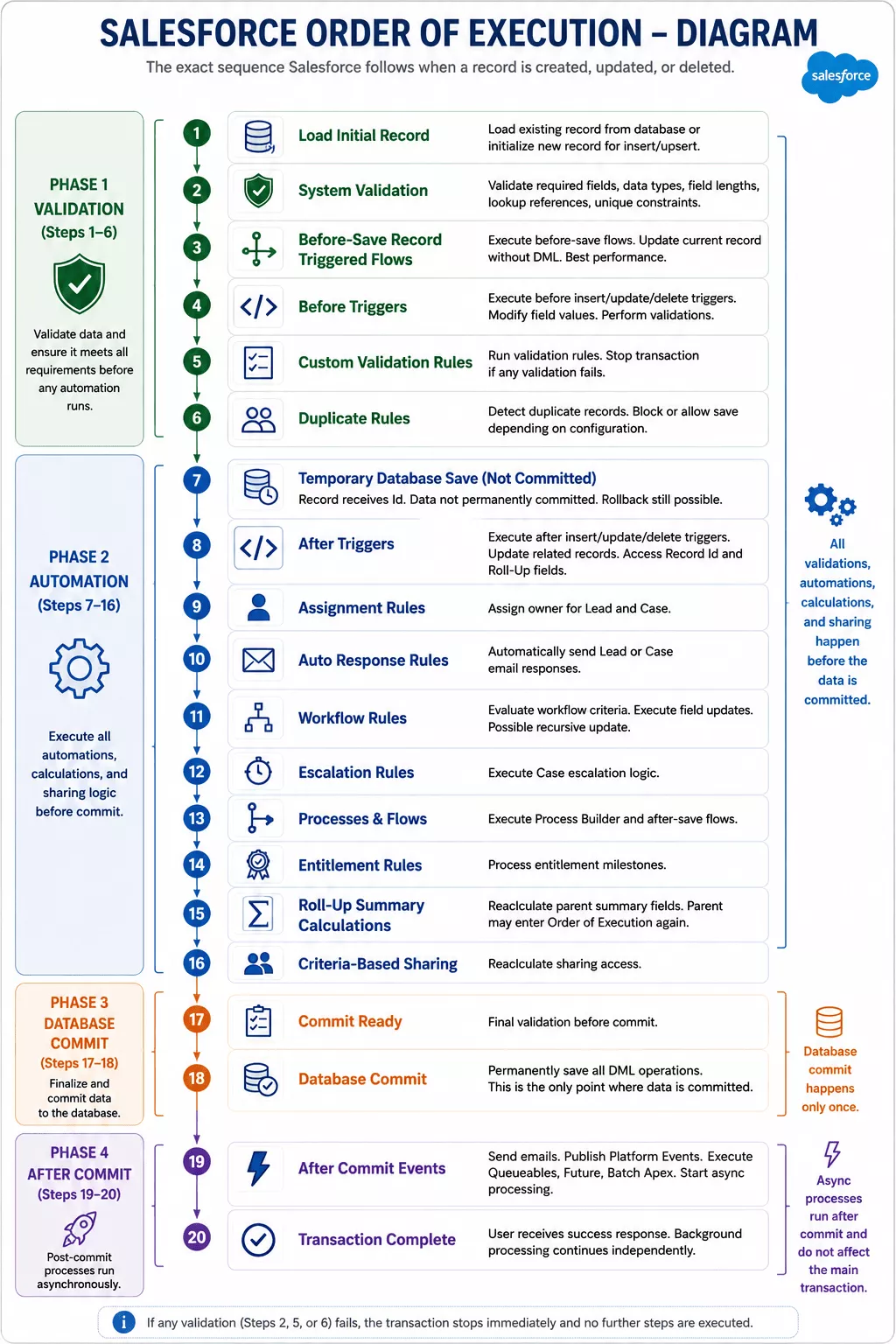
1. Quick Salesforce Order of Execution Diagram
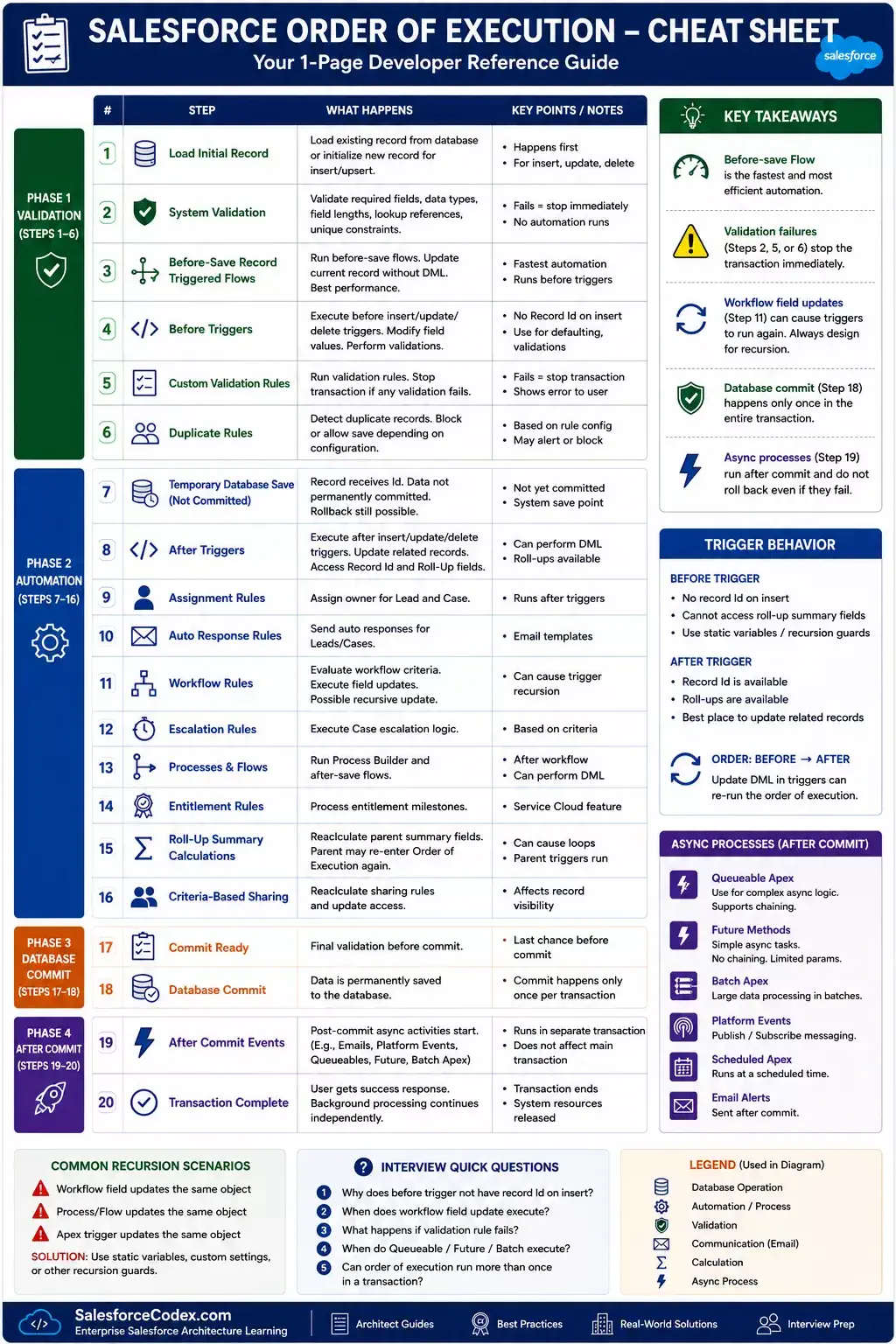
2. Salesforce Order of Execution Cheat Sheet
- Load existing record
- System validation
- Before-save Flow
- Before Trigger
- Custom Validation Rules
- Duplicate Rules
- Save record
- After Trigger
- Assignment Rules
- Auto-response Rules
- Workflow Rules
- Process Builder
- After-save Flow
- Escalation Rules
- Roll-up Summary
- Sharing Rules
- Commit Ready
- Commit
- Post Commit Logic
- Transaction Complete
3. Detailed Steps in the Order of Execution
1. Loads Initial record
In this event, the original record is loaded from the database, or the record is initialized for an upsert statement.
2. System Validation (for UI edits)
During this step, the field values on the record are updated. If a new record is being inserted, the field values are set from those provided in the request. In this step, below system validation is performed
- Field Data Types Are Checked—Ensures the entered data matches the field’s data type
- Required Fields Are Verified—All fields marked as “Required” on the object level (not just page layout) must have values.
- Maximum Field Lengths Are Enforced—If the user exceeds the allowed character limit (e.g., 255 characters for a text field), the system throws an error.
- Unique Constraints Are Checked—Ensures fields marked as unique don’t have duplicate values in the database.
- Foreign Key (Lookup) Constraints Are Validated—Ensures referenced records (like Account in Contact) exist and are valid.
If the request is passed from the standard UI page, then validation from 1 to 4 is performed. And if the request is from custom code or an API, then all 5 validations are performed.
Note: System validations run even if triggers are bypassed.
3. Executes before record-triggered flows
In this step, Salesforce executes any flows (for the current record object) that are set to run before the record is saved to the database. Key characteristics of this step
- The changes made in these flows are saved without the need for a DML operation, which improves performance.
- We can update only the triggering record.
- No records are yet committed to the database at this point.
4. Executes all before triggers
In this step, before triggers (before insert, before update, or before delete) that are created for the current record object are fired.
- We can use this step to modify the record values, like setting default values or correcting data.
- We can validate input values and throw validation errors. If validation errors are thrown, then execution stops here.
- Any changes made to the record here will be saved automatically; we don’t need to write another DML statement.
5. Runs most custom validation
As values are updated using the before trigger and flow, in this step, all system validations are performed again. The below tasks are performed in this step
- All system validations performed again
- Salesforce evaluates any custom validation rules that are set up using formulas.
- If a validation rule fails, the operation is stopped, and the user sees an error message.
6. Executes duplicate rules
In this step, Salesforce checks whether the current record being saved matches existing records based on predefined duplicate rules. These rules help prevent or alert users about possible duplicate data.
Salesforce uses matching rules to compare the new or updated record with existing records. If a potential duplicate is found, and the Duplicate Rule is set to:
- Block: The operation will be stopped, and an error message will be shown.
- Allow but Alert: The operation continues, but a warning is shown (mostly in UI, not in code).
- Allow: The record is saved without any warning.
7. Saves the record to the database but doesn’t commit yet
In this step, the record is saved in the database. Below are key points for this step
- Salesforce temporarily saves the record to memory (called the savepoint),
- record is not permanently written (committed) to the database yet.
- This is done so after triggers, processes, and other post-save logic can access the record
- The actual commit happens only at the end of the full transaction
This step important as
- It allows after triggers to access the record with an assigned ID and pretend it’s already in the database.
- If something fails later (like a failed flow or unhandled exception), Salesforce can roll back to this point without corrupting data.
8. Executes all after triggers
In this step, all after triggers (after insert, after update, and after delete) are created on the current record object are executed. Key points for this step are
- Record IDs (for newly inserted records) are accessible.
- We can access auto-calculated fields like formulas or roll-up summaries
- We can perform DML operations on related records
9. Execute assignment rules
This step is performed only for Lead and Case object records. Ownership of a Lead or Case record is assigned automatically based on predefined active assignment rules. These rules check record conditions and assign the record to a user or queue accordingly.
10. Executes auto-response rules
In this step, Salesforce checks and runs auto-response rules that are set up for Lead and Case objects. The following tasks are performed:
- Salesforce evaluates any active auto-response rules based on the criteria.
- If a rule matches, it sends an email response automatically to the person who submitted the record.
- The email content is based on the configured email template.
- Auto-response rules are only triggered when a new record is inserted, not on update
11. Executes workflow rules
In this step, Salesforce checks for any active workflow rules that meet the criteria based on the current state of the record and then performs the defined actions. The following tasks are performed in this step.
1. Evaluate Workflow Rules: Salesforce checks all active workflow rules that apply to the object and event (insert, update).
2. If the criteria are met, Salesforce executes the associated actions, which may include:
- Field Updates
- Email Alerts
- Tasks
- Outbound Messages
3. Re-run system validations, but don’t re-run custom validation rules, flows, duplicate rules, processes built with, and escalation rules.
4. Workflow Field Updates: If any field updates happen:
- The record is updated again internally.
- Salesforce re-evaluates validation rules and before/after triggers once more.
- May cause recursion if not handled carefully
4. Queue Time-Based Actions: Any time-dependent actions (e.g., send an email after 3 days) are queued to run later.
12. Executes escalation rules
This step is only executed for the case object. Salesforce checks if any active escalation rules apply to the Case record being created or updated.
If the rule conditions are met:
- Escalation actions are scheduled to trigger based on defined time limits.
- The Case can be reassigned to another user or queue.
- Email notifications can be sent.
- If no escalation rules are defined, Salesforce skips this step.
13. Executes Salesforce Flow automations
In this step, Salesforce runs flows configured to execute after the record is saved. These are flows which executed by workflows or other flows. Orders for the execution of these flows are not guaranteed.
14. Executes record-triggered flows after save
This step occurs after the record is saved to the database but before the transaction is fully committed. In this step, flows can
- Access the final version of the record (after DML).
- Perform actions like updating related records, sending emails, or creating tasks.
- Access related records using
Get Records. - Can trigger additional DML, which may initiate another order of execution cycle.
15. Execute entitlement rules
This step is also performed for only case records and is part of the service process in Salesforce.
- When a Case is created or updated, Salesforce checks whether any active Entitlement Processes or Milestone rules apply based on the case criteria.
- Entitlement Rules automatically assign entitlements (like support contracts or service levels) and milestones (time-based actions) to Case records.
- If a match is found, it starts tracking milestones like “First Response Due” or “Resolution Due” based on your service-level agreements (SLAs).
16. Roll-up summary calculations
In this step, Salesforce updates the roll-up summary fields on the parent record when related child records are added, changed, or removed. Roll-up summaries are only supported natively on master-detail relationships. Updating the parent due to roll-up summary can execute after triggers, workflows, and flows on the parent record.
17. Grandparent roll-up calculations
In this step, the rollup summary is calculated for the grandparent record. When a child record is updated, and that update triggers roll-up summary fields on the parent object, Salesforce also checks and updates roll-up summaries on the grandparent object.
18. Criteria-based sharing evaluation
This step ensures that record access (sharing) is correctly updated based on the criteria-based sharing rules.
- Salesforce re-evaluates sharing rules that are based on specific field values or criteria.
- It checks whether the record still meets or no longer meets the conditions for those sharing rules.
- Based on the updated sharing rule, Salesforce grants or revokes access to users or groups accordingly.
19. Commits all DML operations to the database
This is the final step in the Apex Order of Execution. It means Salesforce permanently saves all the changes made during the transaction into the actual database.
Key points for this step are
- Inserts/Updates/Deletes committed to the database
- Triggers and Automations Stop Running. No further logic (like triggers, flows, workflows) will run after this point.
- For new records, Record IDs are finalized
- If everything succeeds:, the user gets a success confirmation.
- If there’s an error (e.g., DML exception not caught), the whole transaction rolls back.
20. Executes all after-commit logic
In this stage, Salesforce runs logic that doesn’t affect the current transaction, but happens after the data is permanently stored.
Action can be performed during this step
- Sending Emails – Emails triggered by workflow rules, flows, approval processes, or email alerts.
- Asynchronous Code – Queued future methods, Queueable, Batch Apex, and @future jobs start execution.
- Enqueued Platform Events- Platform events that were published during the transaction are now delivered to subscribers.
- Post-commit logic in Managed Packages – Any logic from managed packages that is set to run after the commit.
- Chained Queueables – If a Queueable job enqueues another Queueable, it happens after the commit
4. Why is the order of execution important?
Salesforce provides many features that will be impacted by the order of execution. If we implement features properly by understanding the order of execution, then it will ensure
- data integrity
- predictable automation behavior,
- and efficient performance;
otherwise, we will face conflicts between automation. Below are Salesforce features that will be impacted by the order of execution.
1. Validation Rules
Validation rules are declarative tools for ensuring data integrity, such as preventing a record from saving if a required field is empty. These checks data against set criteria at specific points, and their placement can lead to failures if data is modified earlier in the sequence.
2. Triggers (Before and After)
Triggers are custom code executed before and after any DML operation performed on object.
Before triggers are ideal for data validation, setting default values, or modifying the record itself. For example, we want to ensure a field meets a specific format. Since the record isn’t saved yet, any field changes in this event are part of the current transaction and don’t require additional DML operations.
After triggers are executed after the record is saved but before the database commit. After triggers are required when we need to perform some action on related records. For example, we want to update child records, send notifications, or integrate with external systems via callouts.
3. Workflow Rules and Field Updates
Workflows are used to automate simple tasks based on criteria, such as updating a field or sending an email alert. If a workflow field update occurs, it can trigger additional steps, like re-running duplicate rules or triggers, but custom validation rules are not re-evaluated. It can potentially cause recursion if not managed properly. Salesforce will soon retire this feature, and it is recommended to use Flow instead.
4. Flows
Flows (record-triggered flows) let us automate tasks without writing code. Before Save flows can set field values or do calculations before the record is saved. After Save flows run after the record is saved and can update related records. Salesforce suggests using flows for most business logic to avoid using Apex code.
5. Assignment and Auto-Response Rules
These features are specific to the lead and case objects. Assignment rules are used to automate ownership, and auto-response rules send email notifications. So, if any ownership assignment is required for the lead object or the email needs to be sent for the case object, we can utilize these features. No need to create a flow or any custom Apex class.
6. Escalation Rules
This feature is also related to the case object. It automatically escalates cases based on specific conditions and time-based criteria. Escalation Rules are processed after the record is saved and after workflow rules and flows. It won’t interfere with validation rules, triggers, or before-save flows.
7. Roll-Up Summary Fields
Roll-Up Summary fields are calculated fields on a parent object (like Account or Opportunity) that summarize data from related child records (like Contacts or OpportunityLineItems). This feature is triggered after child records are inserted, updated, or deleted.
8. Sharing Rules
Sharing rules are impacted by the order of execution. Sharing rules are evaluated after the record is committed to the database, so users gain or lose access only when the data is finalized. We should consider the order of execution while creating a custom Apex sharing rule.
9. Asynchronous Processes
Asynchronous processes are used to complete time-consuming operations like callouts, complex calculations, or large data processing. This is triggered after the main transaction is complete, improving both performance and user experience.
These Salesforce features are impacted by the order of execution, and vice versa. The order of execution helps keep data accurate, but if not planned properly, it can cause problems like validation errors, unexpected results, or slow performance. For example, if a trigger changes a field before saving, it might cause a validation rule to fail. Also, workflow rules that update records can run triggers again, which may lead to repeated or looping actions.
5. Common Order of Execution Problems and Solutions
Besides the main steps, the following points should also be considered along with Apex Order of Execution in Salesforce. These help make sure your automation works smoothly, runs efficiently, and doesn’t cause unexpected problems.
1. Trigger Recursion
- Updates from workflows, flows, or triggers can re-fire the same or other triggers.
- Use static variables or recursion control patterns to prevent infinite loops.
2. Bulk Operations
- Always design triggers and automation to handle bulk data (e.g., 200 records at once).
- Avoid using SOQL or DML inside
forloops to prevent governor limits. Check out our post to handle DML inside a loop.
3. Validation Rule Dependencies
- Field changes in
before triggerscan impact validation rule outcomes. - Ensure field values are finalized before validation rules run.
4. Order of Trigger Execution (Multiple Objects)
- There’s no guaranteed order when triggers on different objects are involved in the same transaction.
- Design triggers with a one-trigger-per-object pattern to manage execution order.
- Plan your logic with minimal cross-object dependencies.
5. Duplicate Rule Behavior
- Duplicate rules run after triggers but before workflow rules.
- This can stop record creation or update unless configured properly.
6. Flow Timing
- Flows (especially record-triggered ones) may run before or after triggers depending on their configuration.
- Understand when your flows fire and what fields they modify.
7. Rollback Behavior
- If any error occurs before the commit, the entire transaction is rolled back.
- But errors after commit (e.g., in future methods, async jobs) do not roll back the main transaction.
8. Record Changes Post-Commit
- Any logic run after the commit (like sending emails or handling platform events) can’t change the current transaction’s data.
9. Chained Automation Complexity
- A trigger can call a flow, which updates a record, which re-triggers another trigger. This chain reaction can be hard to debug.
- Use logs and debug statements to trace execution paths.
6. Order of Execution Example Scenarios
| Scenario | Automation Involved | Execution Flow | Common Problem | Root Cause | Recommended Solution |
|---|---|---|---|---|---|
| Trigger Executes Twice | Apex Trigger + Workflow Rule / Flow | Trigger → Save → Workflow Update → Trigger Executes Again | Trigger logic runs multiple times | Workflow or Flow performs another update on the same record | Use trigger framework, recursion control, and avoid duplicate updates |
| Flow vs Apex Trigger Conflict | Before-Save Flow + Before Trigger | Before Flow → Before Trigger → Database Save | Field value is overwritten unexpectedly | Later automation changes the value set by earlier automation | Define clear ownership: Flow or Apex, avoid duplicate business logic |
| Validation Rule After Trigger Update | Before Trigger + Validation Rule | Before Trigger → Validation Rule → Save | Developer expects validation error but record saves | Trigger modifies fields before validation executes | Understand execution order; validate final record state |
| After Trigger Updates Related Records | After Trigger + Parent/Child Automation | Record Save → After Trigger → Related Record Update | Unexpected automation chain or recursion | Trigger updates related objects that invoke more automation | Use layered architecture and control automation depth |
| Queueable Executes After Commit | Trigger + Queueable Apex | Trigger → Enqueue Job → Commit → Queueable Execution | Queueable does not execute immediately | Async jobs run only after successful transaction commit | Handle failures, design async processing properly |
| Roll-Up Summary Triggers Parent Automation | Child Update + Roll-Up Summary + Parent Automation | Child Update → Roll-Up Calculation → Parent Update → Parent Automation | Parent trigger runs unexpectedly | Roll-up summary updates parent record | Include roll-up effects in automation design |
| Flow Migration Causes Duplicate Logic | Process Builder + Flow + Apex | Multiple automation paths execute together | Data updated multiple times | Old and new automation coexist | Perform automation inventory before migration |
| Multiple Automations Update Same Field | Flow + Trigger + Workflow | Flow → Trigger → Workflow | Final value differs from expectation | Last executed automation overwrites previous value | Establish automation ownership and remove conflicts |
| Trigger Recursion Through Relationships | Multiple Triggers | Account → Contact → Case → Account | Governor limits or infinite loops | Circular record updates across objects | Use recursion prevention and transaction design patterns |
| Automation Order Confusion During Debugging | Flow + Apex + Validation + Async | Multiple execution phases | Difficult troubleshooting | Developer does not know which automation changed data | Use debug logs and map complete execution sequence |
7. Order of Execution Best Practices
Understanding Salesforce Order of Execution is not only about memorizing the sequence of events. The real value comes from knowing how different automation tools interact and designing solutions that behave predictably as your Salesforce org grows.
The following best practices help developers and architects avoid common execution-order issues, automation conflicts, and unexpected data behaviour.
7.1. Avoid Duplicate Business Logic Across Automation Tools
One of the most common causes of order-of-execution issues is implementing the same business rule in multiple places.
For example, the same Account update logic may exist in:
- Record-triggered Flow
- Apex Trigger
- Workflow Rule
- Process Builder
- Validation Rule
Although each automation works individually, together they can produce unexpected results because the final field value depends on execution order.
Example:
A Flow sets: Account.Status = Active, and A Trigger later changes: Account.Status = Pending, The final value saved in Salesforce is Pending.
Define a clear automation ownership strategy:
Recommended Approach
- Use Flow for simple record updates and declarative automation.
- Use Apex when logic requires complex processing, reusable services, advanced error handling, or large data processing.
- Avoid implementing the same requirement in both Flow and Apex.
7.2. Understand Before-Save and After-Save Automation Differences
Salesforce provides different automation points depending on whether you need to modify the current record or perform additional actions.
Use Before-Save Flow or Before Trigger when:
- Updating fields on the same record
- Performing calculations
- Setting default values
Use After-Save Flow or After Trigger when:
- Updating related records
- Creating child records
- Calling external services
- Performing actions that require record Id
Choosing the correct execution point reduces unnecessary database operations and prevents automation conflicts.
7.3. Design Automation With Recursion Prevention in Mind
A record update can trigger another automation process, which may update the original record again.
This can result in:
- Infinite loops
- Governor limit exceptions
- Duplicate processing
Recommended Approach
Use:
- Trigger frameworks
- Proper separation of logic
- Static variables carefully
- Change detection before performing updates
Example:
Instead of:
account.Status = 'Active';
Always check whether a change is actually required.
if(account.Status != 'Active'){
    account.Status = 'Active';
}
7.4. Keep One Automation Entry Point Per Object
Large Salesforce implementations often suffer from having multiple triggers or automation paths on the same object.
For example:
Account Trigger 1
Account Trigger 2
Account Flow 1
Account Flow 2
Account Flow 3
Developers cannot easily predict what will happen during record save.
7.4.1. Recommended Approach for Apex Trigger
Maintain:
- One apex trigger per object
- One clear trigger handler
- Documented automation ownership
- A defined execution strategy
Example: AccountTrigger ->AccountTriggerHandler -> AccountService -> Business Logic
This makes debugging and future enhancements much easier.
7.4.2. Recommended Approach for Flow Trigger
For Salesforce flows, use one automation entry point per object where practical. Flow Trigger Explorer and trigger order can manage execution sequence, but they do not replace the architectural benefits of centralized automation ownership.
For small orgs, multiple flows with clear naming and ordering may be sufficient. For enterprise orgs, a single entry flow with modular subflows provides better governance, debugging, and scalability. We can create one automation entry point for different lifecycle events.
Example: These are separate entry points.
Account Before Save
Account After Save
Account Delete Flow
Account Scheduled Flow
7.5. Always Consider Transaction Boundaries
Not every action happens immediately in the same transaction. Synchronous and Asynchronous processes have different execution paths. Synchronous processes run in the same transaction, but Asynchronous processes run after the commit is successful. So consider DML operations accordingly.
7.6. Avoid Updating the Same Field From Multiple Automations
When multiple automation processes update the same field, troubleshooting becomes difficult, and the final value depends on execution order.
Recommended Approach
Create an automation decision document:
| Field | Owner |
|---|---|
| Opportunity.Stage | Sales Flow |
| Account.Status | Account Trigger |
| Customer Score | Data Processing Service |
Every important field should have a clear owner.
7.7. Use Debug Logs to Understand Actual Execution
Developers should not rely only on assumptions about execution order.
When troubleshooting, review debug logs and identify:
- Which automation executed?
- In what order?
- Which code changed the value?
- Which automation performed the update?
Useful log categories:
- Workflow
- Validation
- Apex Code
- Database
- System
A five-minute debug log review can often identify issues that would otherwise take hours.
7.8. Consider Bulk Processing During Every Automation Design
Order of execution happens for every record transaction, but Salesforce processes records in batches. A solution that works for one record may fail for hundreds.
Example:
An account trigger that updates the related contacts can work for 1 record, but can fail for 200 accounts as contacts can be more than 3000 records. It may hit governor limits.
Recommended Approach
- Always design automation using:
- Efficient transaction handling
- Collections
- Bulkified queries
- Bulkified DML
7.9. Document Complex Automation Flows
As Salesforce orgs grow, nobody remembers every automation rule.
For critical business processes, document:
- Object involved
- Trigger point
- Flow name
- Apex class
- Execution dependency
- Field ownership
- Exception handling
This becomes extremely valuable during debugging and future enhancements.
7.10. Review Automation Architecture Regularly
Salesforce automation evolves continuously. A clean design today can become complicated after several releases.
Regularly review:
- Duplicate automation
- Unused flows
- Trigger dependencies
- Workflow migrations
- Performance issues
- Recursion risks
A periodic automation review prevents technical debt from accumulating.
8. Salesforce Flow vs Apex Trigger Execution Order
One of the most common questions among Salesforce developers is whether Flow or Apex Trigger executes first. The answer depends on the type of Flow and where it runs in the transaction.
Understanding this execution order is essential when both Flow and Apex Trigger modify the same record, as the final field values depend on which automation executes later.
8.1 Execution Order Overview
The following table summarizes where each automation runs during a record save transaction.
| Execution Stage | Automation |
|---|---|
| 1 | Before-Save Record-Triggered Flow |
| 2 | Before Apex Trigger |
| 3 | Custom Validation Rules |
| 4 | Record Saved to Database |
| 5 | After Apex Trigger |
| 6 | After-Save Record-Triggered Flow |
| 7 | Assignment Rules, Auto-Response Rules, Escalation Rules |
| 8 | Roll-Up Summary Calculations |
| 9 | Commit Transaction |
| 10 | Post-Commit Asynchronous Processing |
You can see in the table for Before-Save Flow vs Before Trigger that both automations execute before the record is committed to the database. Because the Before Trigger executes after the Before-Save Flow, it overwrites the earlier value.
In case of an after-save scenario, the record trigger flow executes later, so it will overwrite the value.
8.2 Can Flow and Apex Trigger Work Together?
Yes. In many Salesforce implementations, Flow and Apex Trigger coexist. A good design is to give each automation a clear responsibility.
For example:
| Automation | Responsibility |
|---|---|
| Before-Save Flow | Populate default values and simple field updates |
| Before Trigger | Complex business rules requiring Apex |
| After Trigger | Create or update related records |
| After-Save Flow | Notifications, approvals, and user-facing automation |
Avoid implementing the same business rule in both Flow and Apex, as this makes the final outcome dependent on execution order and increases maintenance effort.
8.3 Which Should You Choose?
The choice depends on the complexity of the requirement.
| Requirement | Recommended Solution |
|---|---|
| Simple field updates | Before-Save Flow |
| Validation and calculations | Before-Save Flow |
| Complex business logic | Apex Trigger |
| Multiple related object updates | Apex Trigger |
| External API callouts | After Trigger with Asynchronous Apex |
| User notifications | After-Save Flow |
8.4 Best Practices
- Use Before-Save Flow for simple updates to the current record.
- Use Apex Trigger when declarative tools cannot meet the business requirement.
- Avoid updating the same field from both Flow and Apex.
- Keep business logic centralized to reduce conflicts.
- Test automation together, not in isolation, to verify the complete execution sequence.
9. Frequently Asked Questions
1. What is Salesforce Order of Execution?
Salesforce Order of Execution is the sequence of events Salesforce follows when a record is created, updated, deleted, or undeleted. It determines the order in which validation rules, Flows, Apex triggers, assignment rules, workflow rules, and other automation processes execute during a transaction.
2. Why is Salesforce Order of Execution important?
Understanding the Order of Execution helps developers design reliable automation, prevent trigger recursion, avoid conflicts between Flow and Apex, troubleshoot unexpected behavior, and optimize application performance.
3. What runs first: Flow or Apex Trigger?
For record-triggered automation, Before-Save Record-Triggered Flows execute before Before Apex Triggers, while After Apex Triggers execute before After-Save Record-Triggered Flows. Understanding this sequence is essential when both Flow and Apex update the same record.
4. Do validation rules run before or after Apex triggers?
System validation runs before triggers, but custom validation rules are evaluated after Before Apex Triggers and before the record is saved to the database. This allows a Before Trigger to modify field values before custom validation rules are evaluated.
5. Why does my Apex trigger execute twice?
An Apex trigger may execute more than once during the same transaction if another automation, such as a workflow field update or certain record update processes, causes Salesforce to perform an additional save operation. Proper recursion handling and automation design help prevent unintended repeated execution.
6. Can Flow and Apex Trigger be used together?
Yes. Flow and Apex Triggers can work together within the same transaction. A common best practice is to use Flow for simple declarative automation and Apex for complex business logic, ensuring that each business requirement has a single owner.
7. When should I use Before Trigger instead of After Trigger?
Use a Before Trigger when you need to modify the record being saved, validate data, or set default values before the database commit. Use an After Trigger when working with related records, sending notifications, or performing actions that require the record ID.
8. Does Queueable Apex execute during the same transaction?
No. Queueable Apex is an asynchronous process. The job is queued during the transaction but executes only after the transaction has been successfully committed. If the transaction fails and rolls back, the queued job is not executed.
9. Can multiple automation tools update the same field?
Yes, but it is not recommended. When multiple Flows, Triggers, or other automation processes update the same field, the final value depends on the execution order, making the system difficult to maintain and troubleshoot.
10. How can I debug Order of Execution issues in Salesforce?
Use Salesforce Debug Logs to identify the sequence of automation execution. Reviewing Flow logs, Apex logs, validation rule evaluations, and database operations helps determine which automation modified the record and in what order.
11. What happens if a validation rule fails?
If a validation rule fails, Salesforce stops processing the transaction, rolls back any pending changes, and displays the validation error to the user. The record is not saved to the database.
12. Does Order of Execution apply to both record creation and updates?
Yes. Salesforce follows the Order of Execution for record creation, updates, deletions, and undeletions, although certain steps may vary depending on the operation being performed and the automation configured in the org.
13. What is the difference between Before-Save Flow and Before Apex Trigger?
A Before-Save Flow is a declarative automation designed for simple updates to the current record and is optimized for performance. A Before Apex Trigger provides greater flexibility for implementing complex business logic, reusable services, and advanced processing.
14. How does Salesforce Order of Execution affect integrations?
Integrations that create or update Salesforce records also trigger the Order of Execution. Any configured Flows, Apex Triggers, validation rules, duplicate rules, or other automation will execute unless explicitly bypassed through a supported design pattern.
15. What are the best practices for designing Salesforce automation?
Follow these best practices:
- Understand the complete Order of Execution before implementing automation.
- Avoid duplicating business logic across Flow and Apex.
- Keep one trigger per object.
- Use Before-Save Flow for simple field updates.
- Bulkify Apex code and avoid unnecessary DML operations.
- Implement recursion prevention where needed.
- Test all automation together to verify the complete execution sequence.
10. Salesforce Apex Learning Path
If you’re learning Salesforce Apex, the following topics are the natural next steps after understanding the Order of Execution:
| Recommended Topic | Why Learn It? |
|---|---|
| Apex Triggers | Understand trigger events and context variables. |
| Governor Limits | Write scalable Apex that stays within platform limits. |
| Bulkification Best Practices | Process multiple records efficiently. |
| Queueable & Batch Apex | Learn asynchronous processing patterns. |
| Apex Testing | Write reliable unit tests for your automation. |
| Apex Design Patterns | Build maintainable enterprise applications. |
Looking for a structured roadmap? Explore our Salesforce Apex Learning Path, which guides you from Apex fundamentals to advanced development concepts.
11. Summary
The Apex Order of Execution helps you understand how Salesforce handles record changes like insert, update, or delete. It’s useful for both developers and admins because it allows them to:
- Create reliable automation by knowing the right time triggers, flows, and rules run.
- Avoid problems like endless loops, failed checks, or unexpected changes.
- Improve system performance by cutting out extra steps and staying within limits.
- Test and fix issues more easily by following the exact order in which things happen.
- Keep data accurate and consistent across related records and processes.
References
Triggers and Order of Execution
Recommended Reading
- Lookup Relationship Anti-Patterns
- Large Data Volume (LDV) Best Practices
- Flow Best Practices
- Queueable Apex vs Batch Apex
- Data Architecture Anti-Patterns
- Top Salesforce Architect Interview Questions
- Optimizing Salesforce Apex Code
- Efficient Ways to Debug Salesforce Platform Events
- How to Handle Bulkification in Apex with Real-World Use Cases
- Handle Heap Size for Apex Code Optimization
- Build Scalable Solutions with Salesforce
- How to Correctly Publish Platform Event Using Salesforce Apex
Last Update On: 2nd Aug, 2026

Dhanik Lal Sahni is a Salesforce Solution Architect, Independent Consultant, and the founder of SalesforceCodex.com. With nearly two decades of IT experience and extensive expertise in Salesforce architecture, he helps startups and enterprises design scalable, secure, and high-performance CRM solutions using Sales Cloud, Service Cloud, Experience Cloud, Data Cloud, Apex, Lightning Web Components (LWC), and enterprise integration patterns.
Through SalesforceCodex, he shares practical tutorials, real-world implementation guides, enterprise architecture best practices, and interview preparation resources for Salesforce Developers, Architects, and Administrators.
Learn more about his Salesforce consulting and freelance services at dhaniksahni.com.
