


Email communication is an important part of Salesforce Service Cloud. Support agents frequently send emails to customers while working on Cases. Salesforce provides a standard Send Email Quick Action in the Case Feed that allows agents to compose and send emails without leaving the Case record.
The standard Send Email action provides several capabilities, including:
- Sending emails to customers and other recipients.
- Adding CC and BCC recipients.
- Selecting an appropriate From address.
- Composing email subjects and message bodies.
- Associating email conversations with the Case.
However, business requirements are not always straightforward. Organizations may need to populate email addresses dynamically, select different sender addresses based on business rules, or retrieve recipients from multiple related records. This reduces a lot of agents’ time, and ultimately they will be able to handle more customers.
Salesforce provides declarative configuration through Predefined Field Values and formula fields. When these capabilities are insufficient, developers can use Apex’s QuickAction.QuickActionDefaultsHandler interface to customize the standard Case Feed Send Email action.
This article explains the standard Send Email action, declarative customization, Apex-based customization, and architectural considerations for choosing the right approach.
What is Salesforce Send Email Quick Action?
Salesforce provides a standard Send Email action that enables users to send emails directly from supported records. For case records, the Send Email action is commonly available in the Case Feed.
When a support agent clicks Send Email, Salesforce opens an email composer containing fields such as:
| Field | Description |
|---|---|
| From | Identifies the sender’s email identity |
| To | Primary email recipients |
| CC | Additional visible recipients |
| BCC | Additional hidden recipients |
| Subject | Email subject |
| Body | Email message content |
The email composer can use existing Case and related-record information to provide default values. For example, when an agent sends an email from a Case, Salesforce can use the Case Contact’s email address as the recipient.
The standard action is useful because it provides a familiar email experience without requiring developers to build a custom Lightning Web Component or email interface.
Why customize the standard Send Email action?
Consider a customer support organization that manages Cases across multiple regions and departments.
The organization has the following requirements:
- The customer’s email address should automatically populate in the To field.
- The sender address should depend on the Case region.
- The Account Relationship Manager should be added to CC.
- The Compliance Team should be added to BCC for selected Case types.
- The subject should contain the Case Number.
These requirements can be implemented using a combination of declarative configuration and Apex.
2. Customizing Send Email Using Predefined Field Values
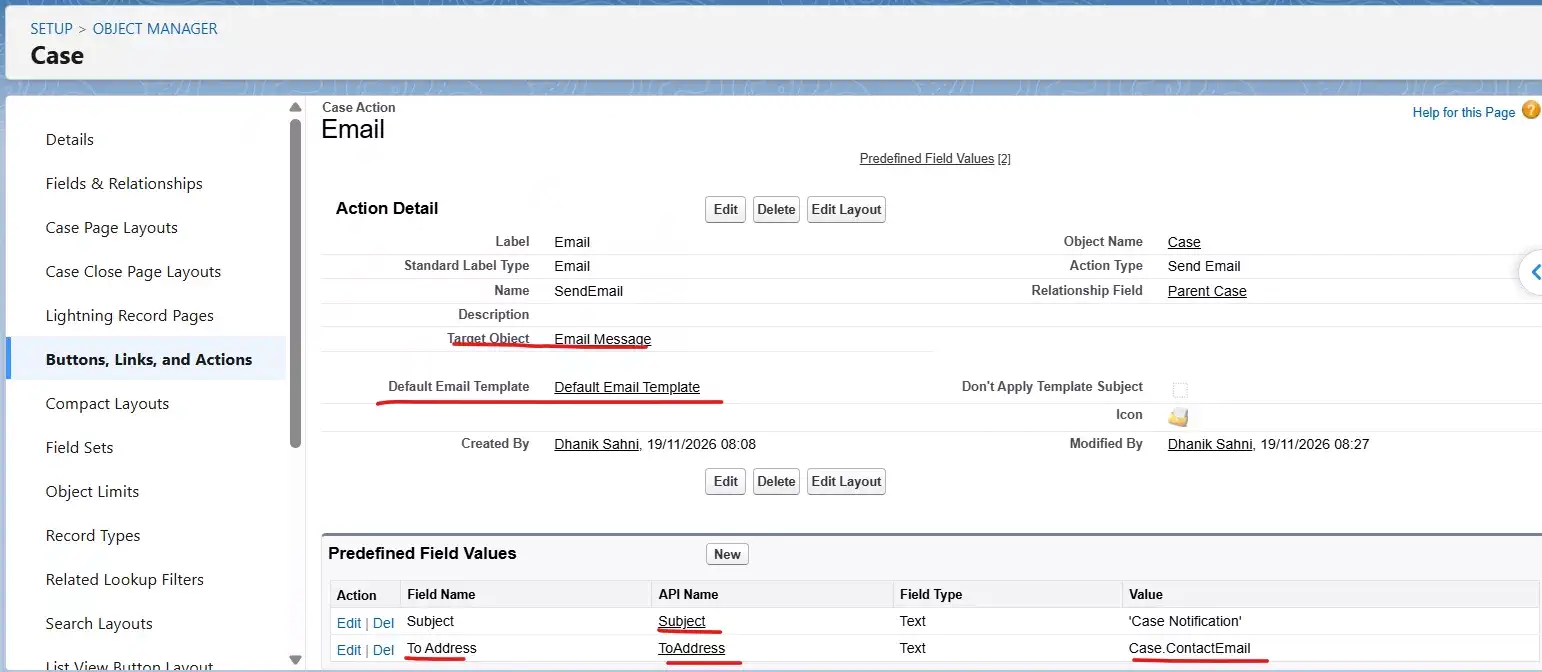
Salesforce provides standard features, Predefined Field Values for drafting email field values. These values allow administrators to populate fields automatically when users invoke an action.
For example, an administrator can configure predefined values for the Send Email action without writing Apex code.
2.1 Configure Predefined Field Values
Navigate to: Setup → Object Manager → Case → Buttons, Links, and Actions → Send Email
Open the action configuration and locate the Predefined Field Values section. Create predefined values for the required fields.
For example:
| Field | Predefined Value |
|---|---|
| Subject | Case Notification |
| From Address | support@company.com |
| To Address | Case Contact Email, which is supported by the field reference |
| HTML Body | A predefined message, where supported |
The exact available fields and reference options depend on the action configuration.
2.2 Using Formula Fields
Formula expressions can also be used for supported predefined field values.
For example, an organization may want to generate an email subject containing the Case Number.
A formula could be:
"Case Update - " & CaseNumberSimilarly, a formula can evaluate Case fields to determine an appropriate default value.
For example:
IF(
    ISPICKVAL(Origin, "Web"),
    "websupport@salesforcecodex.com",
    "support@salesforcecodex.com"
)
The formula can be used as a predefined value where the target action field supports the required reference or formula configuration.
2.3 When Should You Use Predefined Field Values?
Predefined Field Values are suitable when:
- The value is static.
- The value depends on fields available in the action’s formula context.
- The requirement involves straightforward conditional logic.
- No complex related-record retrieval is required.
- The same configuration can be maintained declaratively.
However, formula-based configuration has limitations when business rules require querying multiple related records, evaluating dynamic team assignments, or retrieving configurable routing information from multiple records.
This is where the Apex-based field population is useful.
3. Customizing Send Email Using Apex
Salesforce provides the QuickAction.QuickActionDefaultsHandler interface to customize default values for supported standard quick actions.
For the standard Case Feed Send Email action, this interface allows developers to prepare and populate its default values programmatically. The handler is particularly useful when the email configuration depends on complex business logic or information from related records.
Business Scenario: Dynamic Email Routing for Customer Support
Consider an organization that provides support across different regions. It has multiple support teams, Account Relationship Managers, and Compliance teams.
The organization wants to populate email recipients dynamically whenever an agent clicks Send Email from a Case.
The requirements are:
| Email Field | Business Rule |
|---|---|
| From | Based on Case region |
| To | Case Contact’s email |
| CC | Account Relationship Manager |
| BCC | Compliance Team for selected Case types |
| Subject | Case Number and Case Subject |
Instead of maintaining these values manually, Apex can retrieve the required information from custom metadata types, cases, and related records.
Solution:
As the address can be based on region, we can create a custom metadata type to store that information.
Create a custom metadata type—Case Region Setting (CaseRegionSetting__mdt) with two fields
| Field Label | Field API | Data Type |
|---|---|---|
| Region | Region__c | Text |
| From Address | FromAddress__c |
Add the below metadata records.
| Developer Name | Region | From Address |
|---|---|---|
| North America | North America | support.us@company.com |
| Europe | Europe | support.eu@company.com |
| Asia Pacific | Asia Pacific | support.apac@company.com |
| India | India | support.india@company.com |
Based on object and custom metadata records, create a quick action handler class that will apply from address dynamically.
Register the Apex Handler
After creating the Apex class, register it for the standard Case Feed Email action.
Navigate to Setup → Support Settings
Locate the Default Handler for Email Action setting, select the Apex handler class, and save the configuration.
This enables Salesforce to invoke the Apex handler when initializing the supported email action.
4. Architectural Considerations
Although Apex provides additional flexibility, it should not be the default choice for every email customization requirement.
Choosing the right approach is important for maintainability, performance, and long-term scalability.
4.1 Declarative vs. Programmatic Approach
| Requirement | Recommended Approach |
|---|---|
| Fixed sender address | Predefined Field Value |
| Simple subject generation | Formula / Predefined Field Value |
| Populate recipient from Case Contact | To Recipients / Predefined Field Value |
| Add multiple Salesforce recipients | JUNCTIONIDLIST() |
| Populate recipient email from a string field | To Address / Predefined Field Value |
| Complex sender selection | Apex |
| Dynamic CC/BCC based on multiple related records | Apex |
| Dynamic email template selection | Apex |
| Complex configuration-driven routing | Apex |
Always start with the simplest solution that satisfies the business requirement.
4.2 Understand Default Value Precedence
One important consideration is the precedence of different email default configurations.
- The Apex
QuickActionDefaultsHandlertakes precedence over other default settings. This means that values populated by the Apex handler can override predefined field values. - Avoid configuring conflicting defaults in multiple places, as this can make troubleshooting difficult.
4.3 Keep Business Configuration Outside Apex
Avoid hardcoding email addresses, department names, and routing rules in Apex. Instead, use Custom Metadata Types to maintain configurable information.
For example:
CaseRegionSetting__mdt
This allows administrators to update email routing configuration without changing Apex code.
4.4 Consider Salesforce Email Security
The From Address must be an eligible sender identity, such as a verified Org-Wide Email Address. The current user’s permissions and access to that sender identity should also be considered.
Additionally:
- Validate recipient email addresses.
- Avoid exposing internal recipients through CC.
- Follow organizational email compliance policies.
- Consider Salesforce email deliverability and sending limits.
4.5 Avoid Unnecessary SOQL Queries
The email action handler executes when the email composer is initialized.
Best practices include:
- Query only the required Case and related fields.
- Avoid SOQL queries inside loops.
- Retrieve configuration efficiently.
- Handle missing Contact and Account information.
- Avoid unnecessary related-record retrieval.
Summary
Salesforce provides multiple ways to customize the standard Case Feed Send Email action.
For straightforward requirements, Predefined Field Values and formula-based configuration are sufficient and should be preferred.
However, when email defaults depend on complex business rules, related records, dynamic CC/BCC selection, configurable sender routing, or dynamic email template selection, Apex’s QuickAction.QuickActionDefaultsHandler provides additional flexibility.
The important architectural principle is to use declarative configuration wherever possible and introduce Apex only when the business requirement justifies the additional complexity.
This approach keeps Salesforce email customization scalable, maintainable, and easier for administrators and developers to manage.
References:
Related Posts
- Schedule Email alerts based on Business Hours
- Send Email Template As PDF Attachment using Salesforce Apex
- Send Email Using Email Template and Apex
- How to Set Up Agentforce Custom Actions in Flow
- Sending Report As Attachment in Salesforce

Dhanik Lal Sahni is a Salesforce Solution Architect, Independent Consultant, and the founder of SalesforceCodex.com. With nearly two decades of IT experience and extensive expertise in Salesforce architecture, he helps startups and enterprises design scalable, secure, and high-performance CRM solutions using Sales Cloud, Service Cloud, Experience Cloud, Data Cloud, Apex, Lightning Web Components (LWC), and enterprise integration patterns.
Through SalesforceCodex, he shares practical tutorials, real-world implementation guides, enterprise architecture best practices, and interview preparation resources for Salesforce Developers, Architects, and Administrators.
Learn more about his Salesforce consulting and freelance services at dhaniksahni.com.
